How to make a Catch Santa on Camera AI video?
To make a catch santa on camera AI video, upload one photo of your living room, Christmas tree or front doorway and press Generate. The tool keeps your exact room layout and lighting, then creates a newly generated MP4 video with sound showing Santa Claus tiptoeing in on night-time security footage to leave wrapped gifts under the tree. Everything runs in the browser on a phone or computer with no text box and nothing to type.
1 room photo · Realistic CCTV · No watermark
- Sample 1
Add your photo
Your photo is only used to make your video, never to train AI. Without an account, photos and videos are deleted 3 days after the video is ready.
Pick quality and length
This video: 27 credits · 100 credits are $9.90, and credits never expire
By creating, you confirm you have permission to use these photos. A video that fails is never charged.
No sign-up needed · Use credits to make your video
See a ready-made result instantly. No credits used.
Catch Santa On Camera examples: photo in, video out
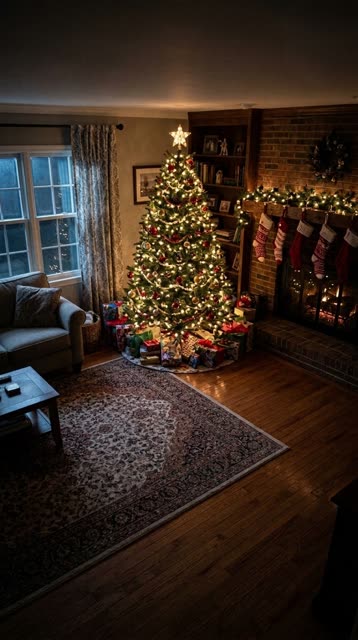 Example photo
How to use Catch Santa On Camera
Upload one photo of your room or front door
Pick a clear photo of your living room, Christmas tree or front porch from your phone or computer. JPEG, PNG, WebP and iPhone HEIC files up to 30 MB work.
Choose quality and press Generate
Keep the default settings or adjust the video length and resolution, then press Generate. Payment happens in a window on the same page by card or PayPal with no sign-up needed.
Download and show your family
Most videos render in a few minutes while you can browse other pages. Save the finished MP4 with sound straight to your phone photo album or share it with family.
The short answer
Upload one clear photo of your living room or front entry, choose your quality and length, and press Generate to make a catch santa on camera AI video with sound. No app download or account is required, and the finished MP4 carries no watermark so you can save it to your phone or share it right away.
What a catch santa on camera video looks like
A catch santa on camera AI video turns a still photo of your real living room or front doorway into a short night-time security camera clip of Santa visiting your home. The scene opens on the exact walls, tree lights, stockings and floor in your uploaded photo so kids immediately recognize their own house.
Seconds into the clip, Santa Claus walks quietly into view carrying a sack of presents, kneels to place wrapped boxes beneath your Christmas tree, and glances briefly up toward the camera with a gentle finger-to-lips shush before slipping out of frame. Subtle low-light security camera grain and soft ambient footsteps with rustling paper make the footage feel like a real overnight motion alert.
Best camera angles and photo setup for Santa CCTV footage
High-corner wide shots taken at dusk or night with your Christmas tree lights turned on produce the most convincing catch santa on camera footage. A slightly elevated angle mimics an indoor home security camera or doorway monitor, while leaving open floor space near the tree gives Santa natural room to walk and kneel.
| Room spot | Camera angle | Lighting tip |
|---|---|---|
| Living room tree | Hold your phone high in a corner | Tree lights on, ceiling lamp off |
| Front doorway | Angled view from the hall or porch | Porch light or hallway nightlight |
| Fireplace hearth | Wide shot showing rug and stockings | Dim room with warm fireplace glow |
Take the photo while the room is empty and keep the lens steady so furniture edges stay sharp. Avoid bright camera flash, heavy motion blur or people standing in front of the tree.
Why parents make caught on camera Santa clips on Christmas Eve
Showing children a short clip filmed in their own living room turns Christmas morning into an unforgettable surprise without complicated video editing. Because the AI builds motion directly from your actual room photo instead of a generic stock backdrop, every detail from your rug pattern to your tree ornaments stays familiar.
Many families save the finished MP4 to their phone camera roll before breakfast and play it as a pretend overnight security alert. Others share the clip in family group chats or post reaction moments on TikTok, Instagram Reels and YouTube Shorts.
Tips for sharing your Santa camera clip
Vertical phone photos work best when you plan to play the clip full-screen on a phone or post to TikTok, Reels and Shorts, while landscape photos fit living-room TVs and wide family chats. Turn up the volume before showing kids so they hear the quiet footsteps and wrapping-paper rustle alongside the visual reveal.
If you post realistic AI-generated holiday footage publicly on TikTok or YouTube, switch on the platform's built-in AI content label during upload. Your photo is used solely to generate your clip and is never used to train AI models.
FAQ
- How do I make a catch santa on camera video in my own living room?
- Take one clear photo of your empty living room, Christmas tree or front doorway, upload it on this page, and press Generate. The tool keeps your exact room and creates a night-time security camera style MP4 with sound showing Santa leaving gifts.
- What kind of room photo works best for catching Santa on camera?
- A wide photo taken from a slightly high corner with your Christmas tree lights or a dim lamp turned on gives the most believable indoor camera angle. Leave open floor space near the tree or fireplace and avoid using bright flash.
- Does this santa cam tool make a realistic santa security camera video with sound?
- Yes. Each finished MP4 includes generated ambient audio such as soft footsteps and rustling wrapping paper so the overnight camera clip feels natural when played aloud.
- Can I use a front door or doorbell camera photo?
- Yes. You can upload a wide photo of your front door, hallway, porch or living room, and the video starts directly from that frame.
- Which photo file types and sizes are supported?
- JPEG, PNG, WebP and iPhone HEIC photos are supported up to 30 MB per photo. Sharp, well-framed phone photos produce the cleanest video detail.
- Do I need an account or mobile app to create the video?
- No account or app installation is needed. Everything runs in your phone or computer browser, and you can buy a one-time credit pack by card or PayPal in a window on the same page.
- Is there a watermark on the downloaded Santa video?
- No. Every finished video downloads cleanly without a watermark, ready to save to your phone album or share with family.
- What happens to my room photo after the video finishes?
- Your photo is used only to generate your video and is not used to train AI. Without an account, uploaded photos and finished videos are removed 3 days after completion; signing in with your checkout email keeps them in My Works.
- Do credit packs expire after Christmas?
- No. Credits from a one-time credit pack never expire, so any remaining balance stays available for future holiday or everyday video effects.
Make your Catch Santa On Camera video
Upload, tap once, and your video is ready in a few minutes.